Claude Code to Figma: Tutorial, Limitations, and a Better Approach
Figma just announced that you can send Claude Code output to Figma as fully editable design layers.
Dylan Field, Figma's CEO, calls it escaping tunnel vision. Code-first teams get stuck iterating on the first version without exploring alternatives. The design canvas gives them room to zoom out.
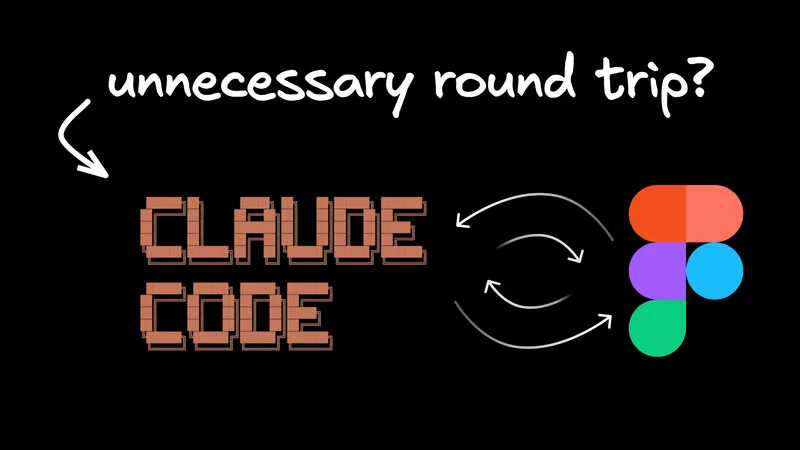
It's a compelling pitch. The announcement doesn't address the roundtrip, though. Code goes to Figma, your team annotates and explores, then changes come back to code via the Figma MCP. That's a lot of extra steps for what started as a single feature build.
This post walks through setting up the Claude Code to Figma integration and shows what the workflow looks like in practice. It also asks whether the roundtrip helps or just adds friction. If you want to convert code to Figma, the tutorial below gets you running in under two minutes. If you're new to Claude Code, start with our guide to getting started with Claude Code for the fundamentals.
Claude Code to Figma is a new Figma feature that captures live, running UI from your browser and converts it into fully editable Figma layers. You trigger it by typing "Send this to Figma" in Claude Code after installing the Figma MCP. The result is a Figma frame you can organize, duplicate, annotate, and share.
The key word is live. Claude Code to Figma captures the actual rendered state of your browser, whether that's production, staging, or localhost. The output preserves structure, layers, and auto-layout as editable Figma components.
The feature is part of Figma's broader MCP strategy. The Figma MCP server works with Claude Code, OpenAI Codex, Cursor, VS Code, and over a dozen other clients. Figma wants to be the design destination regardless of which AI tool generates the code. The generate_figma_design tool that powers the code-to-Figma direction is currently Claude Code-only and Remote MCP-only.
Field sees the design canvas as a corrective for code-first tunnel vision. "The design canvas is better at navigating lots of possibilities than prompting in an IDE/ADE. With the canvas you can think divergently and see the big picture by comparing approaches side by side." His point is that momentum kills exploration. "It's so easy to get lost in the momentum of creating something," he writes. "The first version often becomes the version."
Field also argues that design and development workflows are no longer linear. "Today, you can start anywhere and go everywhere." The code-to-Figma direction is the missing piece that makes "start anywhere" literal.
To set up Claude Code to Figma, run claude mcp add --transport http figma in your terminal. Then open Claude Code, type /mcp, select the figma server, and click Authenticate. Once connected, type "Send this to Figma" to capture your browser's current state as editable Figma layers.
Here's the full setup sequence.
Step 1: Add the Remote MCP server
Open your terminal and run the install command. Add --scope user if you want it available across all projects.
Step 2: Authenticate
Launch Claude Code and type /mcp. Select the figma server from the list, choose Authenticate, and complete the OAuth flow in your browser. You should see "Authentication successful. Connected to figma" in Claude Code.
Step 3: Verify the connection
Run /mcp again. The figma server should show a green status. If it doesn't, restart Claude Code and retry.
Step 4: Send your UI to Figma
Build something, preview it in the browser, then type "Send this to Figma" in Claude Code. You can capture the entire screen or select specific elements using the capture toolbar that appears in the browser. The captured UI appears as editable frames in your Figma workspace. From there, you can send captures directly to a Figma file, copy them to clipboard, or paste into any existing project.
One troubleshooting note. If the Figma server doesn't appear after adding it, restart Claude Code completely. The MCP connection initializes at startup, so adding a new server mid-session requires a restart.
The workflow starts in Claude Code where you build a feature and preview it in the browser. Typing "Send this to Figma" captures the running UI as editable Figma layers. Your team annotates and explores variants in Figma. To bring changes back to code, you use the Figma MCP server to reference the updated design in your next prompt.
Here's an example. You ask Claude Code to build a signup form with Tailwind:
Claude Code generates the component and opens a browser preview. You check the result, tweak the prompt if needed, and once the UI looks right, you run a second prompt:
Claude Code uses the generate_figma_design tool to capture the rendered UI. In Figma, you get editable frames with layers. Text is editable text, buttons are separate components, and the layout uses auto-layout. Every element is a design artifact you can work with directly.
From there, the team takes over. A designer duplicates the frame and tries a different color palette. A PM drops a comment asking about the OAuth flow, and an engineer flags the section where the mobile breakpoint needs work.
Designers prefer this because Figma is a sandbox. Experimentation there carries no product consequences. Your team can explore four different layouts, annotate trade-offs, and share context without touching production code.
You can capture multiple screens in a single session, and Figma preserves the sequence and context across them. A five-screen onboarding flow stays coherent as a set of related frames.
The bidirectional loop completes when designers finish exploring. They share a Figma link, and you reference that updated design back in Claude Code via the Figma MCP. For the reverse direction, where Figma designs become code, see our guide to the Claude Code + Figma MCP Server.

The roundtrip workflow adds friction at each handoff between tools. Known issues include Figma MCP failures with annotated elements, inconsistent design interpretation, and the fundamental problem that exported Figma layers don't carry code logic. Returning to code after design exploration means re-translating visual changes into implementation.
Count the tool switches in the full roundtrip:
- Write code in Claude Code
- Preview in browser
- Send to Figma
- Explore, annotate, and discuss in Figma
- Use Figma MCP to pull changes back into code
- Review the generated code and merge
That's three distinct tools (Claude Code, browser, Figma) and at least five context switches. Each handoff loses information. Figma layers don't carry your business logic, event handlers, or state management. When changes come back to code, the AI re-translates visual decisions into implementation from scratch.
The Figma MCP is still maturing. The get_code tool struggles when elements have annotations, and MCP connections can be slow, which adds to the friction.
Windows and WSL users face additional friction. The Desktop MCP server doesn't support WSL configurations, and the get_code tool requires Code Connect, which is only available on organization and enterprise plans.
There's also the one-directional export problem. Once you add business logic to the generated code, design updates from Figma mean redoing those changes. Developers have been raising this for years, and the code-to-Figma feature doesn't solve it. The return trip still faces the same translation gap.
Builder.io eliminates the roundtrip by giving designers a visual canvas that edits the codebase directly. Teams use one tool where designers edit visually, PMs review, and devs merge the code diff. Everything happens in a single environment.
Compare the two workflows.
The roundtrip (3 tools, 5+ steps):
- Code in Claude Code
- Send to Figma
- Explore, annotate, discuss
- Figma MCP back to code
- Review generated code
- Merge
Single-tool approach with Builder.io:
- Build and design in Builder.io's visual development canvas
- Designers edit with visual controls on the codebase
- PMs review in the same environment
- Devs review the code diff and merge
The difference is the translation layer. Builder.io's visual canvas edits real code backed by git. Designers get Figma-like controls for layout, styling, and content, and every change produces a reviewable code diff.
Every handoff is a chance for context to get lost. Removing the handoffs means the context stays with the code.
Q: Does Claude Code to Figma work with any Figma plan?
A: The "Send this to Figma" functionality uses the Remote MCP server. The Desktop MCP server, which supports selection-based workflows, requires a Dev or Full seat on a paid plan. Check Figma's pricing page for the latest on which plans include MCP access.
Q: Can I capture multiple screens at once?
A: Yes. Claude Code to Figma supports multi-screen capture in a single session. It preserves the sequence and context across screens, so the full experience makes sense when viewed in Figma. Each captured screen becomes a separate editable frame.
Q: Is this feature exclusive to Claude Code?
A: The generate_figma_design tool that powers code-to-Figma is currently Claude Code-only and Remote MCP-only. Other Figma MCP tools like get_design_context and get_code work with Claude Code, Codex, Cursor, VS Code, and other supported clients.
The setup instructions above get you running with Claude Code to Figma in minutes. Exploring designs on a canvas is appealing. Exploring designs on a canvas that is your codebase is better.
Builder.io gives you that. Designers edit visually, PMs review, and devs merge a clean code diff. One environment, all on real code. Try designing in code with Builder.io.