Skip to content
CONTACT SALESSTART BUILDING
‹ Back to blog

Web Development

Active Navlink Transitions with HTML, CSS and JavaScript
January 9, 2024

Written By Vishwas Gopinath

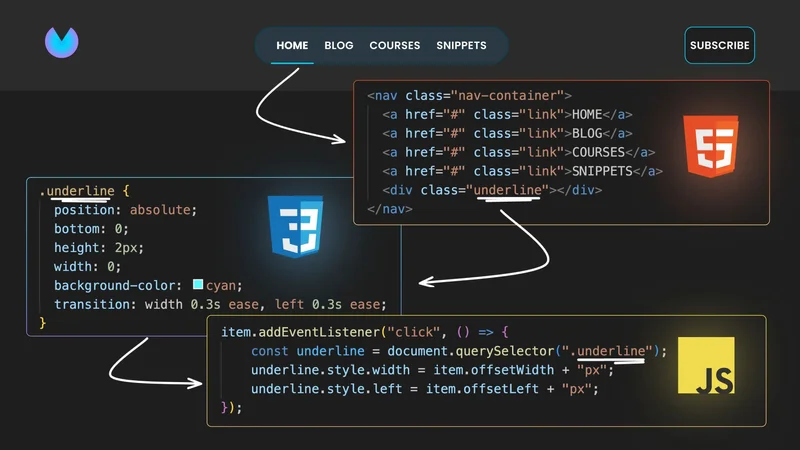
In this blog post, we'll explore how to create an active navlink transition using HTML, CSS, and JavaScript, a feature that can add a nice touch to your portfolio or landing page.

Generating markup from your design

To begin, we'll use Visual Copilot, an AI powered Figma to Code plugin, to accelerate the process. This tool can convert Figma designs into HTML and CSS code, saving us valuable time. Here are the steps:

1. Start with a mockup in Figma, which you can find here.

2. Run Builder.io's Figma plugin, select your design, and click the Generate code button. This action generates the initial HTML and CSS.

3. Copy and paste the generated code into a playground of your choice like Codepen, for example.

Here's the HTML code generated by Visual Copilot in Quality mode:

<header class="main-container">
  <img loading="lazy" src="https://cdn.builder.io/api/v1/image/assets/TEMP/558f6608975e84484d23cfcb4c3fad695afc65e777d464cc97f49e49f86ff227?apiKey=7e8b177c7c374d8abaf3aebf27f1c17d&" class="img" />
  <nav class="nav-container">
    <a href="#" class="link">HOME</a>
    <a href="#" class="link">BLOG</a>
    <a href="#" class="link">COURSES</a>
    <a href="#" class="link">SNIPPETS</a>
  </nav>
  <button class="subscribe-button">SUBSCRIBE</button>
</header>

And here’s the generated CSS:

.main-container {
  justify-content: space-between;
  align-items: start;
  border-radius: var(--rounded-box, 0px);
  background-color: #1f1f1f;
  display: flex;
  gap: 20px;
  padding: 30px 60px;
}

.img {
  aspect-ratio: 1.06;
  object-fit: contain;
  object-position: center;
  width: 50px;
  overflow: hidden;
  max-width: 100%;
}

.nav-container {
  justify-content: space-between;
  border-radius: 36px;
  border: var(--rounded-box, 1px) solid #004957;
  background-color: #2a3843;
  align-self: stretch;
  display: flex;
  gap: 20px;
  padding: 16px 32px;
}

.link {
  color: #fff;
  text-align: center;
  letter-spacing: 0.32px;
  font: 600 16px Poppins, sans-serif;
}

.subscribe-button {
  color: #fff;
  text-align: center;
  letter-spacing: 0.32px;
  white-space: nowrap;
  justify-content: center;
  border-radius: 12px;
  border: 1px solid #02d6fe;
  background-color: #1f1f1f;
  align-self: stretch;
  padding: 16px 8px;
  font: 600 16px Poppins, sans-serif;
}

Adding the navlink transition

HTML changes

In the HTML, add a div tag with the underline class right after the 4 links to create the visual underline effect:

<header class="main-container">
  <img loading="lazy" src="https://cdn.builder.io/api/v1/image/assets/TEMP/558f6608975e84484d23cfcb4c3fad695afc65e777d464cc97f49e49f86ff227?apiKey=7e8b177c7c374d8abaf3aebf27f1c17d&" class="img" />
  <nav class="nav-container">
    <a href="#" class="link">HOME</a>
    <a href="#" class="link">BLOG</a>
    <a href="#" class="link">COURSES</a>
    <a href="#" class="link">SNIPPETS</a>
    <div class="underline"></div>  <!-- Add line -->
  </nav>
  <button class="subscribe-button">SUBSCRIBE</button>
</header>

CSS changes

In the CSS styles, make the following changes to customize the navlink appearance:

  • Remove the underline from all the navlinks using text-decoration: none; to prepare for the custom underline effect.
  • Set the nav container to a relative position.
  • Add styles for the underline class to create the underline effect.
.link {
  color: #fff;
  text-align: center;
  letter-spacing: 0.32px;
  font: 600 16px Poppins, sans-serif;
  text-decoration: none;  /* Add line */
}

.nav-container {
  justify-content: space-between;
  border-radius: 36px;
  border: var(--rounded-box, 1px) solid #004957;
  background-color: #2a3843;
  align-self: stretch;
  display: flex;
  gap: 20px;
  padding: 16px 32px;
  position: relative;  /* Add line */
}

/* Styling the underline class */
.underline {
  position: absolute;
  bottom: 0;
  height: 2px;
  width: 0; /* Initially no width */
  background-color: cyan;
  transition: width 0.3s ease, left 0.3s ease; /* Smooth transitions */
}

JavaScript changes

For the JavaScript logic, find all the link elements and attach a click event handler. Within the handler, update the width and left properties of the underline element to match the clicked link’s offsetWidth and offsetLeft properties:

document.querySelectorAll('.link').forEach(item => {
    item.addEventListener('click', () => {
        const underline = document.querySelector('.underline');
        underline.style.width = item.offsetWidth + 'px';
        underline.style.left = item.offsetLeft + 'px';
    });
});

The active navlink underline should now transition smoothly when a link is clicked.

You can find the full source code on my Codepen

Build in Claude Code.

Ship as a team in Builder.

Builder 2.0 lets you push your branch and hand off design review, PM feedback, and QA to the rest of your team
Try for free

Announcing Builder 2.0:

Multiplayer coding

Real-time collaboration, parallel agents, and visual editing. The whole team ships real code with Al now.

Try for free
Continue Reading
AI10 MIN
Developer experience is dead. Long live agent experience.
WRITTEN BYAlice Moore
June 8, 2026
AI4 MIN
How POGR Cut $30K and a Year of UI Work with Builder
WRITTEN BYAmy Cross
June 4, 2026
AI8 MIN
5 Questions to Ask Before Implementing an Agentic Development Platform
WRITTEN BYAmy Cross
May 28, 2026