Builder Content is a Visual Development Platform that integrates with your existing sites and apps.

Any content in Builder Content can be turned into code, including designs imported from Figma with Builder Figma plugin, Imported from the web with the Chrome extension, or created manually with Builder's Visual Editor.
Builder supports two output methods: generated code and Builder's APIs.
You can choose whether to merge content directly into your codebase or deliver it dynamically using the Visual Editor Publish button. This makes it ideal for marketing content and pages.

In many ways, Builder works the same as any headless CMS, and Builder's CMS data models work identically.
Like a typical headless CMS, you create entries with structured Custom fields or Targeting. You can then query these fields with our Content API and display the content you want, where you want.
In many cases with Builder, the main difference is that instead of hard-coding a page layout, a Builder component dynamically renders the content, optionally using components from your codebase by Registering custom components.
Optionally, you can also restrict Builder editing to only these components, with or without allowing custom styling, using Components-only mode and Roles and permissions.
The next image shows how integrating your app can remove hard-coded content best maintained by other roles on your team, such as marketers, and copywriters.
In addition to visual editing, Builder also adds additional features that are less common in traditional headless CMSes, such as Targeting content and Content Entry insights.
Structured CMS data has its purposes, and while it often isn't the best for things like pages and layouts, it can be great for a number of other use cases that structured data can be more ideal than pure visual editing.
Builder is a headless CMS like any other. Create documents with Custom structured data fields, consume them through our SDKs and APIs, and render the data as you choose.
On top of this, Builder adds even more power by letting you Register custom components that can render dynamically, saving you from having to write all of this logic manually. Instead, you can pass the data to a render Builder provides, such as in the following snippet:
<BuilderComponent model="page" content={json} />For pages and sections, Builder automatically populates a field called blocks that is a list of components to render and their options, as in the following snippet:
{
  "data": {
    "yourCustomFieldName": "yourCustomFieldValue",
    "blocks":  [
      {
        "component": {
          "name": "Text",
          "options": {
             "text": "Hello world!"
          }
        }
      }
    ]
  }
}
Builder passes this data to your site or app through various APIs, and you can load it into your site as HTML or render it dynamically using JSON with frameworks such as React.
The Visual Editor loads your site in an iframe. You provide the URL for the Visual Editor to open. This page needs to have the Builder SDK integrated so Builder can discover where it is, access any provided settings, and pass messages to it.
When a Builder SDK is loaded in the Visual Editor, instead of showing the default content, the SDK waits for a message from the Builder web app on what content to display. Builder messages down the JSON and then sends patches when edits are made to what to render differently. The SDK renders the updates accordingly.
You can also Register custom components to use in the Visual Editor. When you register your own components, Builder keeps a map of component names to references, and messages the web app what components exist and what inputs they take. Within Builder, the built-in components, such as Image, Text, and Columns, work the same way and are open source. Find the open-source components in Builder's GitHub repository.
// This code is in your app. Can be the same components you already use
import { Builder } from '@builder.io/react';

const Heading = (props) => <h1>{props.text}</h1>

Builder.registerComponent(Heading, {
  name: 'heading',
  inputs: [{ type: 'string', name: 'text' }]
})
Internally, Builder keeps a map such as this one:
const componentMap = {}
componentMap['heading'] = Heading
And then when Builder renders the content, Builder iterates over the blocks and render the components and inputs in your framework or SDK of choice, as in the example below:
// Simplified example

export const BuilderComponent = (props) => (
  props.blocks.map(component => {
    let Component = componentMap[component.name];
    return <Component {...component.options } />
  })
)
For examples on how to implement your own rendering for any language or framework, read this forum post.
Builder loads your website in an iframe within the Builder web application.
When your page loads in Builder's web app, any Builder component on your page sends a message to Builder to notify it that it has been found. This only occurs for a matching component; for instance, if you are opening a page to edit your Page Model, Builder waits for a message from a component whose model is Page. Once received, Builder sends a message for what content should be rendered for the preview.
As you make edits, Builder continuously sends messages to this component indicating which new changes to reflect.
If Builder never receives a message from a component of the model type you are trying to edit, Builder doesn't know where or how to preview your content, so you need to ensure the right component loads on the right page.
Builder integrates with your front-end code, not with your hosting platform, and pushes content to your site or app using APIs or generated code. You control your site, code, and hosting—Builder only passes content within your own setup.
If your app is currently deployed, works on your host server, and you integrate Builder into your app, Builder works seamlessly with your code, and you are still free to use your choice of hosting provider.
Examples of hosting providers that Builder customers use include Netlify, Vercel, Amazon AWS, and Google Cloud.

All content is delivered from the edge, renderable server-side or statically, and highly optimized. And our SDKs are small and mighty.
Importantly, there are no hacks here. No iframes, no unneeded client-side code, or rendering. Builder's guiding principle is to produce content just as if you'd written it by hand. Assets are optimized, DOM is minimized, and it's all native to your framework. That is, if you use React, all components are React, and so on, for each framework.
In addition to Registering custom components in the Visual Editor and using Components-only mode, you can also extend the Builder UI with the Custom plugins API for deep customization.
Builder gets its structure from Models. You can make additional models for Pages, Sections, and Data, and customize them with Custom field types as well as Custom plugins.
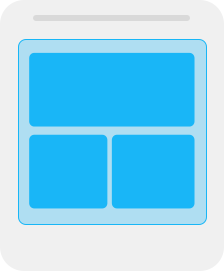
Visual Pages
Use Pages to manage entire pages, such as:
- Marketing and content pages
- Landing pages

Visual Sections
Pro plans

Use Sections to maintain parts of your site or app, such as:

Structured Data
Use Structured Data to manage structured data, such as:
- Navigation links
- Product details
- Blog post authors
In addition to the documentation and SDKs, you can always post questions on the Builder forum where Builder's technical team is available.